Once you've created your RiftLink account, it's time to make your profile yours. This guide walks you through every customization option.
1. Open Profile Settings
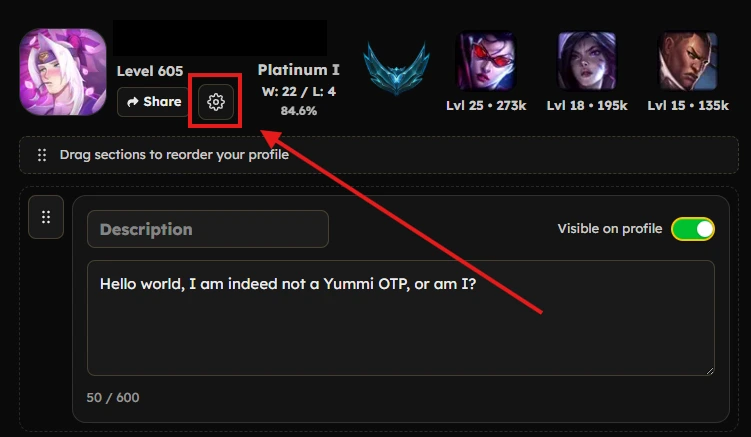
Log in and click Profile in the navigation. You'll see your profile page with sections you can edit. Click the settings icon to start customizing.
2. Toggle ANY of the sections' visibility
At any time, you can hide any of the sections by clicking the Visible on profile toggle button (as shown in the image below).
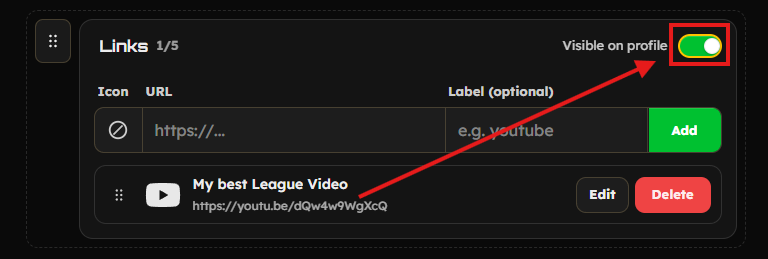
The choice is all yours. You can hide any of the sections as much as you want (except a few sections that are required for the profile to be valid).
All (almost) the options are visible by default and have the Visible on profile toggle button.
Once you have hidden an section, you can show it again by clicking the Visible on profile toggle button again.
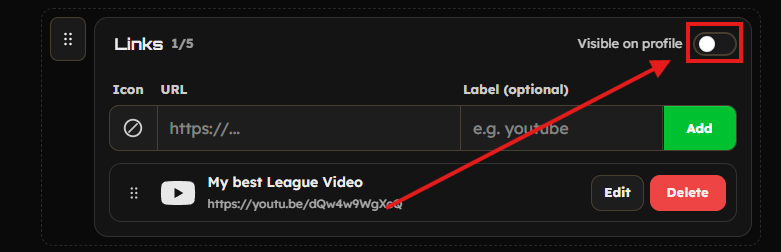
Congratulations! You have successfully toggled the visibility of the option on your custom league of legends profile.
3. Add Custom Links Section
You can add up to 5 links to your profile.
Choose the icon you want to use for the link by clicking the icon picker button (as shown in the image below).
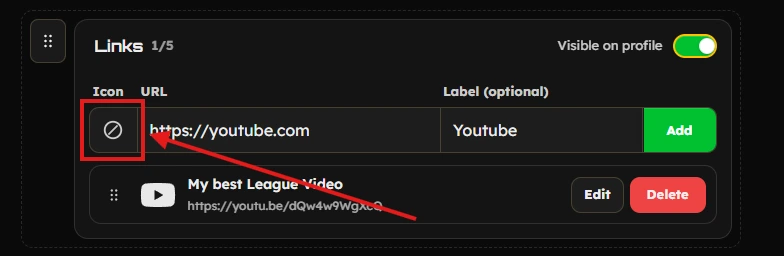
It will open the icon picker modal (as shown in the image below).
When you find the icon you want to use, click the desired icon to select it.
You can also search for an icon by typing in the search bar.If you don't find the icon you want, you can clear the icon to use the default icon or you can send me an email and I'll add the icon you want.
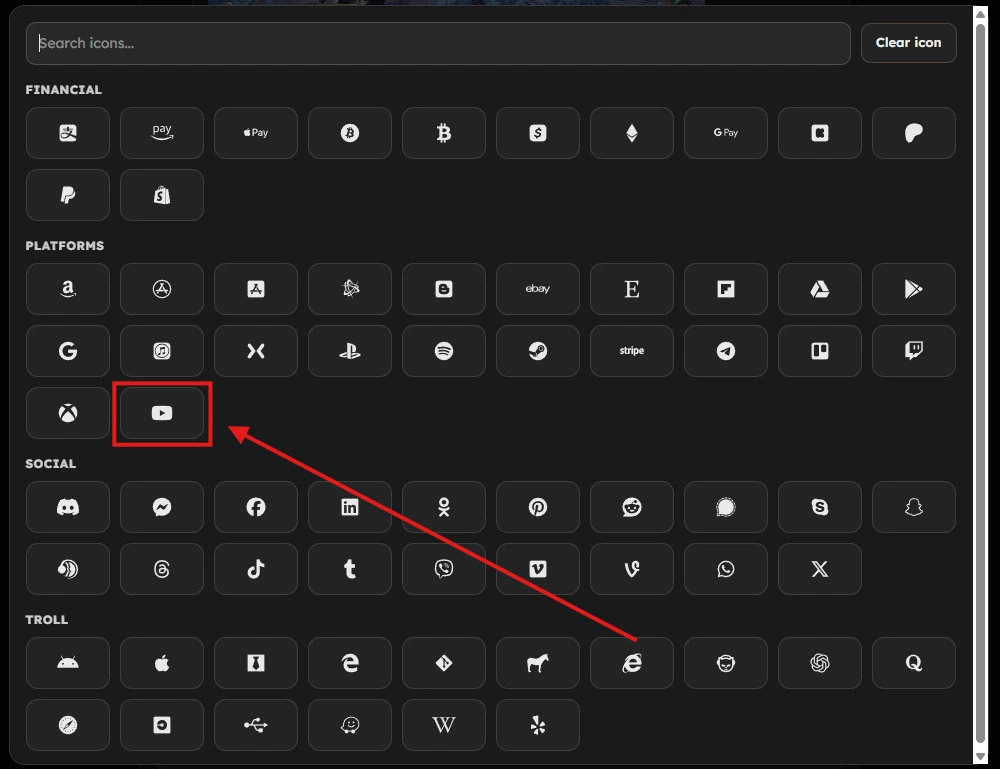
After selecting the icon, enter the URL of the link and optionally enter a label for the link (e.g. YouTube).
After that, click the Add link button to add the link to your profile.
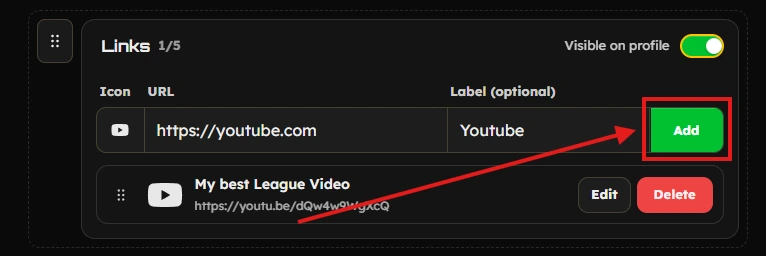
You should see the link added to your profile (as shown in the image below).
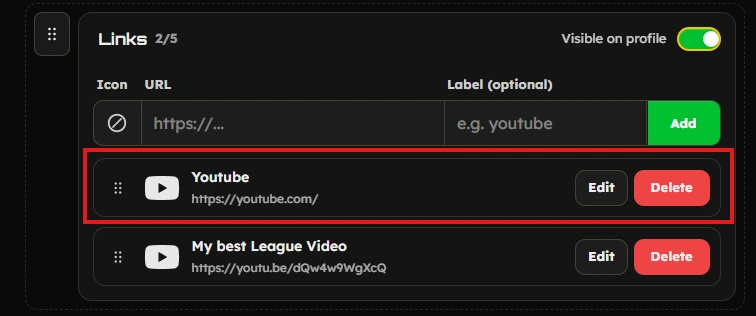
Congratulations! You have successfully added a link to your profile.
4. Edit or Delete a Link
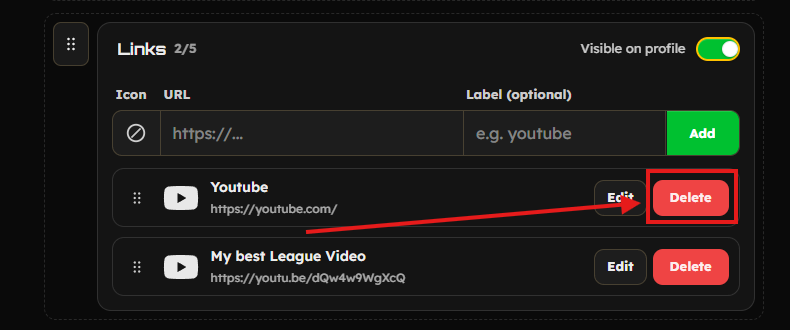
You delete ANY link by clicking delete button on the right side of the link (as shown in the image below).
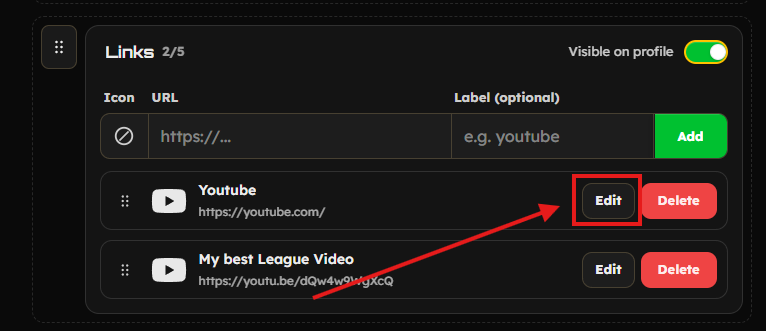
You can also edit the link by clicking the edit button (as shown in the image below).
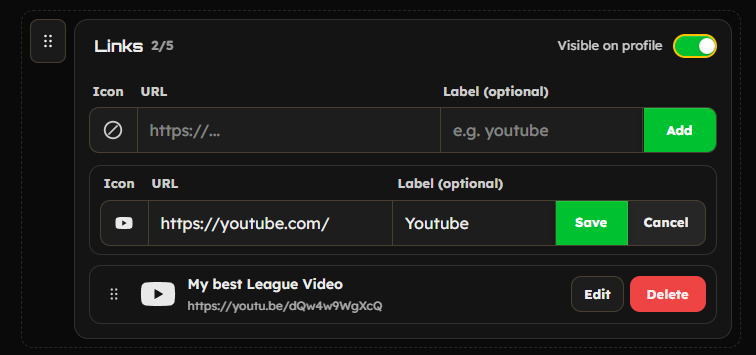
You can edit any of the link details, such as the URL, label and/or icon.
The choice is all yours. You can edit the link as much as you want.
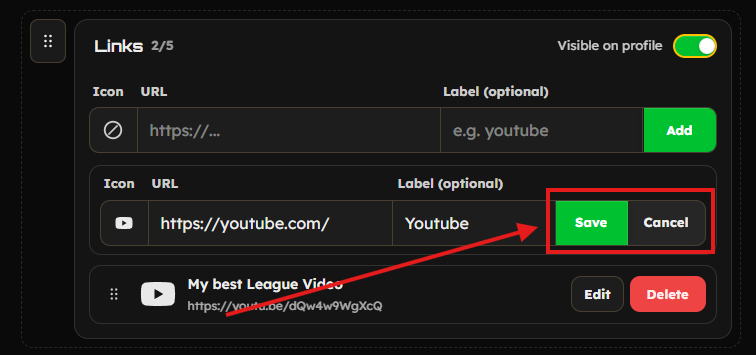
After editing the link's details, click the Save button to save the changes or cancel the changes by clicking the Cancel button.
Congratulations! You have successfully edited or deleted a link.
5. Choose Favorite Champions or Customize the Title
Show up to 3 favorite champions on your profile. Pick them manually—no mastery data required. Perfect if your mains changed after a patch but mastery hasn't caught up yet.
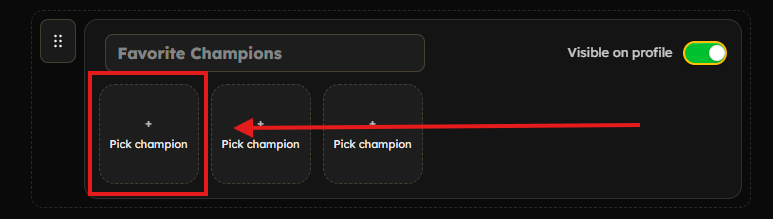
In any of the 3 boxes, you can click the Pick Champion box area to open the champion picker modal. In this example we will pick the first box. (as shown in the image below)
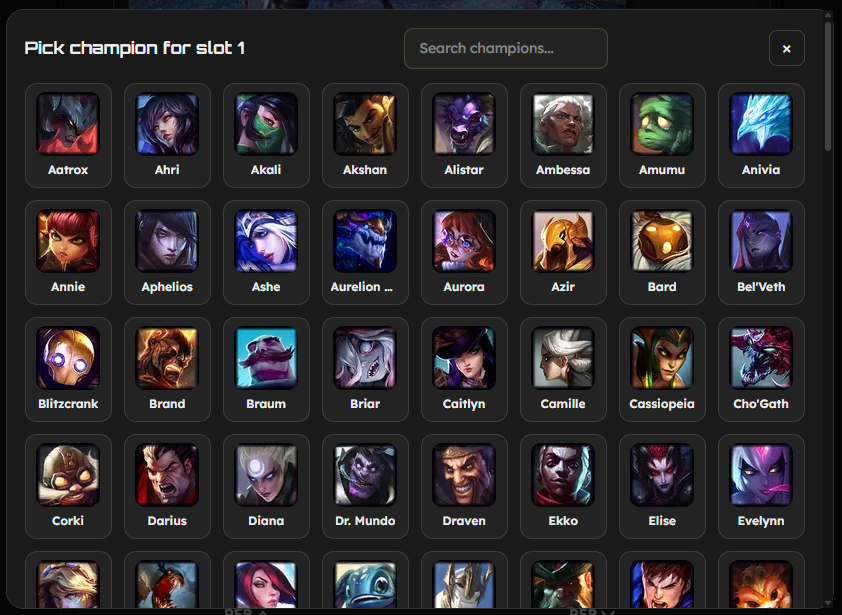
It will open the champion picker modal (as shown in the image below).
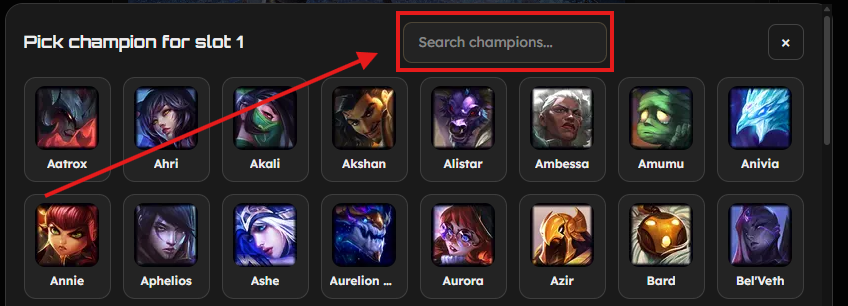
Can't find the champion you want? You can search for a champion by typing in the search bar. (as shown in the image below)
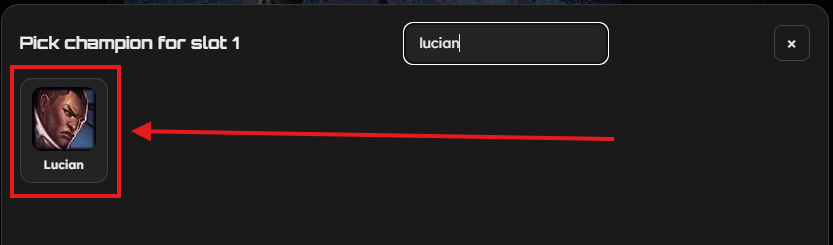
When you find the champion you want to add, click the desired champion to select it. (as shown in the image below)
It will display on the box the champion you selected. (as shown in the image below)
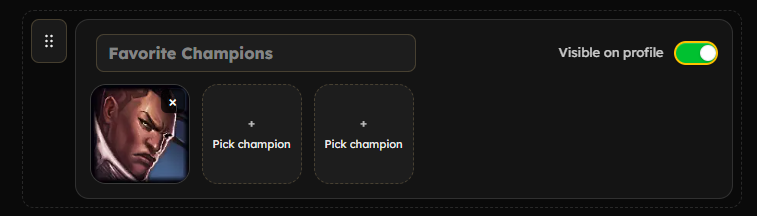
You don't like the Favorite Champions section? You can customize the Title by clicking on the Title input field and type the title you want (e.g. "Riot please buff these champions!") - up to 30 characters. (as shown in the image below)
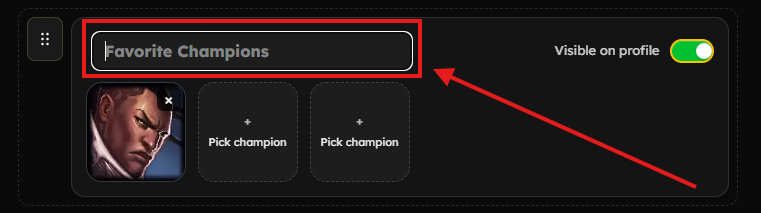
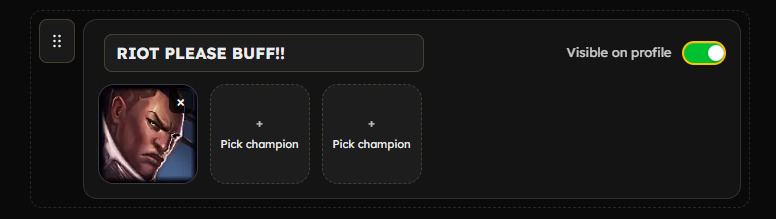
Congratulations! You have successfully customized the Favorite Champions section.
Still not happy with the Favorite Champions section? You can hide it completely by clicking the Visible on profile toggle button (as shown in the image below).
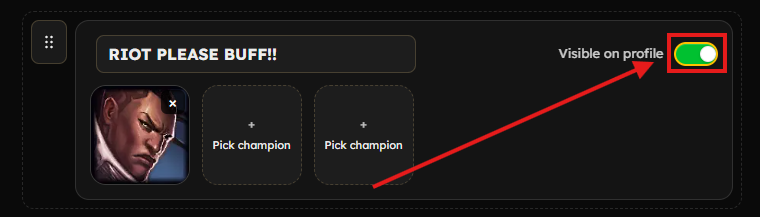
Congratulations! You have successfully hidden the Favorite Champions section.
6. Write a Description
Add a short bio or description to your profile. Tell visitors who you are, what you play, or whatever you like. Display your personality and/or style.
This is about YOU! (up to 100 characters).
You can customize the Description by clicking on the Description input field and type the description you want. (as shown in the image below)
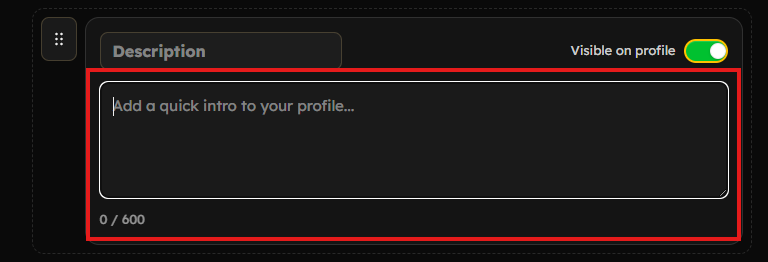
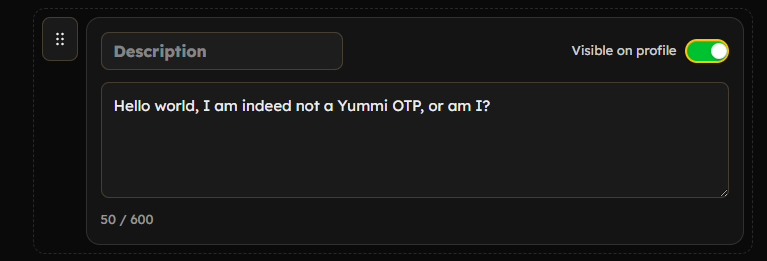
Congratulations! You have successfully added a Description to your profile.
You don't like the Description section's title? You can customize the Title by clicking on the Title input field (as shown in the image below)
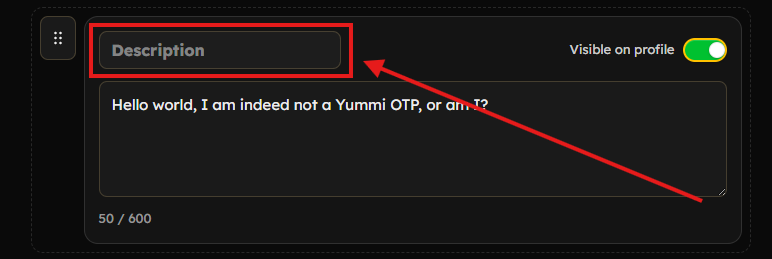
You can type the title you want (e.g. "About Me"). Make it your own! Let your creativity shine! (as shown in the image below)
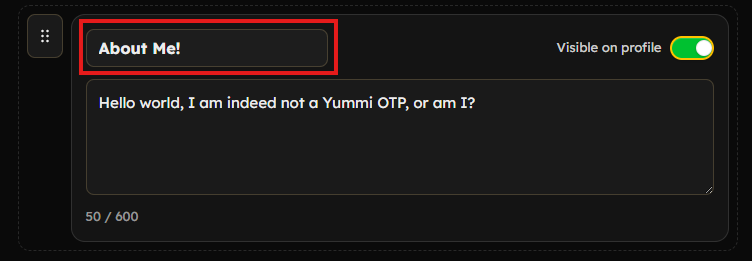
Congratulations! You have successfully customized the Description section's title.
You don't like the Description section? You can hide it completely by clicking the Visible on profile toggle button (as shown in the image below).
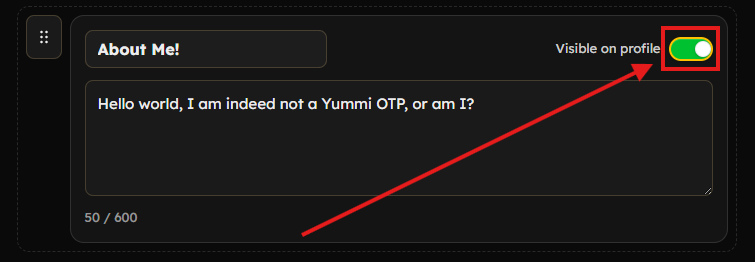
Congratulations! You have successfully hidden the Description section.
7. Reorder Sections
Want more control over the order of sections on your profile?
You can drag and drop the sections to the order you want.
Hover over the section you want to move and click and hold Drag icon to start dragging.
(as shown in the image below)
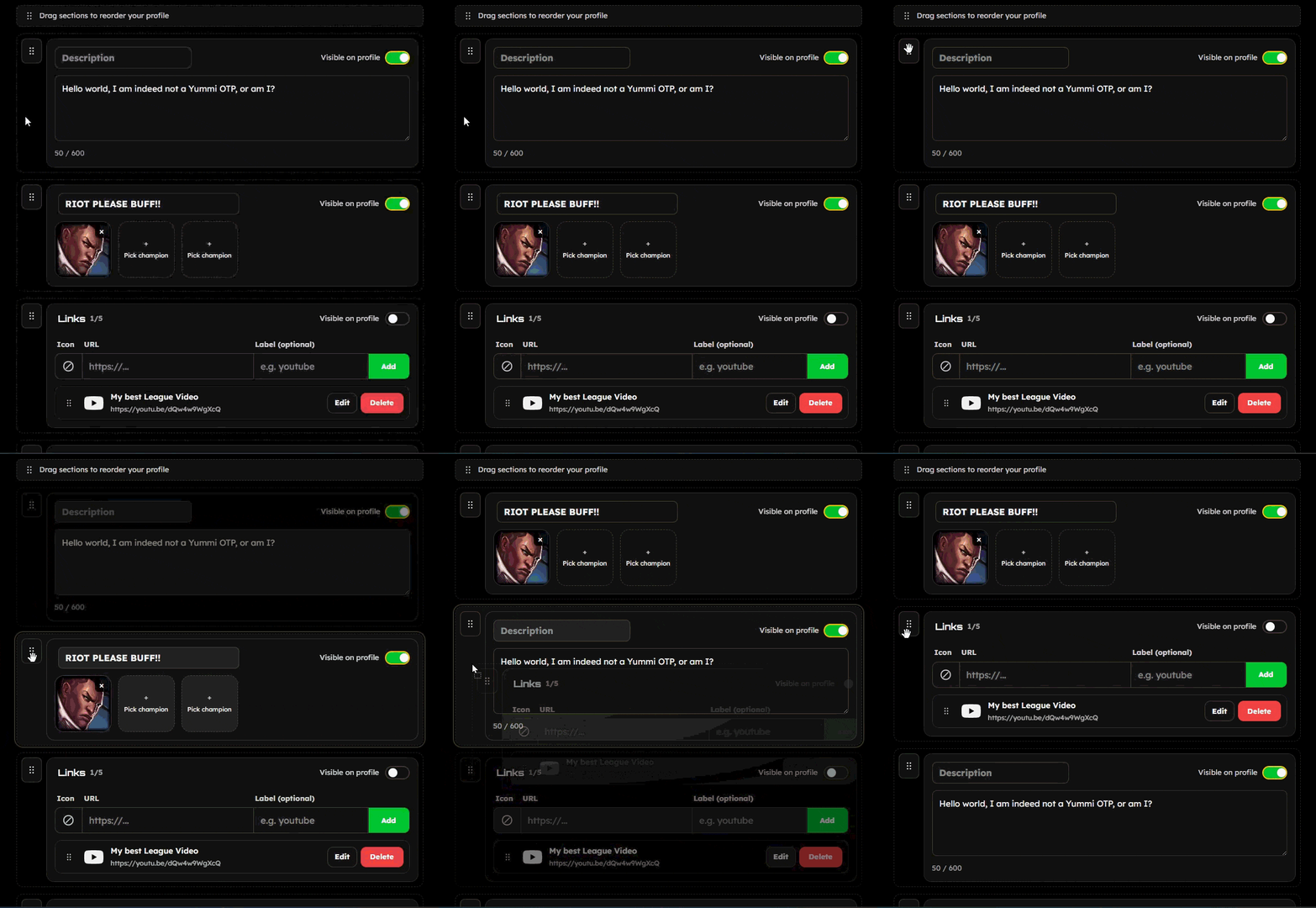
You can move the section to the top, bottom, or any position in between.
It's completely up to you!
Congratulations! You have successfully reordered the sections on your profile.
That's it! Your RiftLink profile is now customized. Share your unique URL and let others discover your LoL profile, links, and personality in one place.